Step by step guide to resetting your password
1. Click the link “Forgotten your password?”
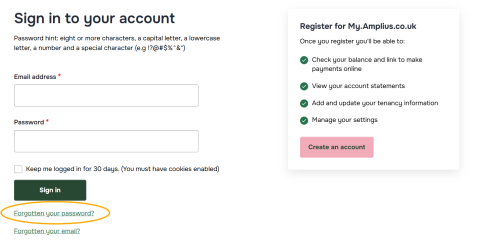
2. Enter your email address and click “Submit”
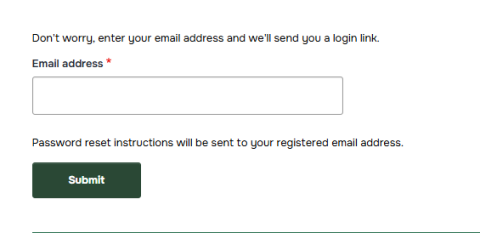
3. You should see a message in a green bar that says “Further instructions have been sent to your email”. The email will come from noreply@amplius.co.uk please check your junk or spam folder as it may go in there. If after 10 minutes if you do not receive the email please contact talktous@amplius.co.uk or call 0800 111 4013 during office open times.

4. Click on the link in the email or copy the link from your email and paste it into your web browser (that’s the top part of your search engine where you type a web address) and press "Enter" on the keyboard.
5. The webpage will inform you when the link will expire click “Log in” to update your password.
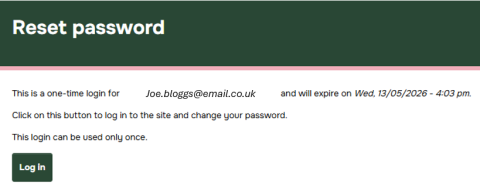
6. The page will confirm in the message you have used the link to rest the password. This password can not be the same as your old one.

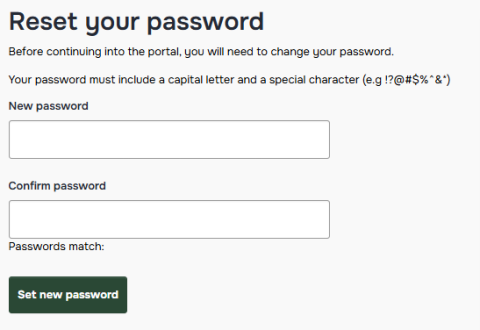
7. Enter your new password and confirm it. Press “Set new password” and you’re all done!
8. You are now taken to your My.Amplius dashboard.
Remember: you only have 24 hours to re-set your password once you receive your email with the link.
If you take longer than 24 hours, you’ll need to request a new password again.
If you request more than one reset email within 24 hours the first request will become invalid.